Can proofreading software check formatting, not just text?


Table of contents

The short answer
Yes, but only some can. Most proofreading and compare tools check words. To catch formatting deviations, a tool has to compare documents character by character at Unicode level and analyze the layout. That’s how content verification software like TVT spots spacing, font, hidden-character and reading-order changes that text-only tools miss.
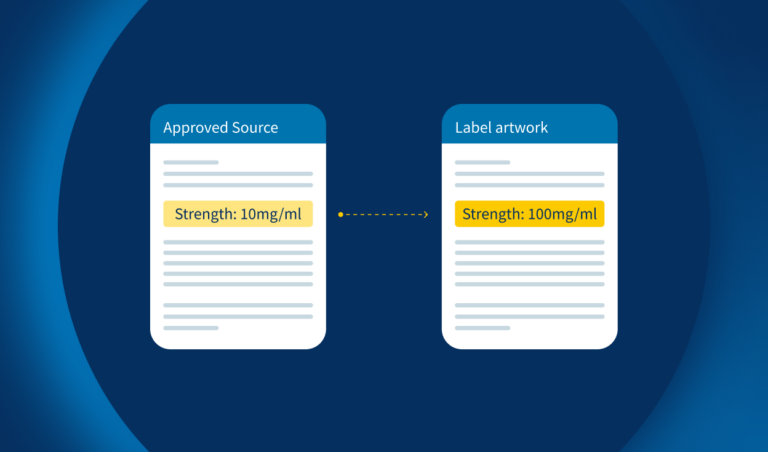
If you work on labels, leaflets, IFUs or packaging, that gap matters. A dropped superscript can turn “10⁶” into “106”. A swapped non-breaking space can split a dose from its unit. A two-column leaflet can be read in the wrong order. None of these change the words, so a word-level check won’t flag them.
This guide covers what automated tools actually catch, where common tools fall short, and how to judge a tool against complex, multi-column documents.
Why formatting is content in regulated industries
In a marketing email, a stray bold or an extra space is cosmetic. On a patient leaflet, it can change meaning. Regulators treat the approved text and how it’s presented as the content you’re accountable for.
Here are the formatting deviations that most often slip past a read-through:
- Superscripts and subscripts. “m²” becomes “m2”, “10⁻³” becomes “10-3”. The digits are all there, so the eye accepts them.
- Spacing and hidden characters. A non-breaking space replaced by a regular one, a soft hyphen, a zero-width character pasted in from another file. Invisible on screen, very visible when a line breaks in print.
- Font, weight and style. Warnings that must appear in bold, brand names that must stay italic, mandatory minimum type sizes.
- A µ swapped for a u, a ≥ turned into a >, a medical device symbol that’s been replaced or dropped.
- Reading order. In multi-column leaflets and cartons, text can be correct but flow in the wrong sequence once it’s laid out.
- Line breaks and layout shifts. A paragraph that wraps differently can push a dosage row onto the next panel.
Each one can trigger a correction cycle, a reprint or, at worst, a recall. And because the words themselves haven’t changed, these are exactly the deviations a human reviewer is most likely to read straight past. For more on the cost side, see how to reduce labeling errors and prevent recalls.
What automated tools actually check (and what they don't)
Not all “proofreading software” does the same job. Broadly, there are three kinds of tool, and each looks at a different layer of your document.
Spell and grammar checkers look at words in isolation. They’ll flag a typo. They won’t tell you whether the leaflet matches the approved source.
Generic compare tools, such as Word Compare or PDF markup and compare features, check one version against another. They’re useful for tracking edits between drafts of the same file type. But they typically compare the text they can extract, not what’s rendered on the page. So results get noisy or incomplete when you compare a Word source to a print-ready PDF, when text sits in columns or tables, or when the change is a character that looks identical.
Content verification software compares what’s actually there. TVT reads every character by its Unicode value, so a µ and a u, or a regular and a non-breaking space, are different characters, even when they look the same. It also analyzes layout and reading order, and checks artwork pixel by pixel. That’s the layer where formatting deviations live.
The practical test is simple: if a deviation doesn’t change the visible word, can the tool still see it?
Side by side: word compare and PDF markup vs. TVT
Generic compare tools handle like-for-like text edits well. The gaps open up when formats differ, characters look alike, or layout matters.
| What you need to catch | Word Compare | PDF compare (e.g. Adobe) | TVT |
|---|---|---|---|
| Added, deleted or changed words | Yes, Word to Word only | Yes, PDF to PDF only | Yes, across multiple formats (e.g. XML) |
| Bold, italic, underline | Partial, with many false positives | Partial, with many false positives | Yes, configurable to cut noise |
| Font, font size, x-height | Partial | Partial | Yes |
| Superscript / subscript | Partial | Often missed | Yes |
| Spacing, non-breaking spaces, hidden characters | Rarely flagged | Rarely flagged | Yes, at Unicode level |
| Look-alike symbols (µ vs u, ≥ vs >) | Partial | Often missed | Yes, at Unicode level |
| Language-specific number and date formats | No | No | Yes |
| Reading order, including complex tables | No | No | Yes |
| Source vs. print-ready file across formats (Word, XML, Excel, HTML, PPT, Illustrator, PDF) | No | No | Yes |
| Artwork and graphics | No | Visual overlay only | Yes, pixel by pixel (TVT Artwork) |
| 1D and 2D barcodes | No | No | Yes, decoded and graded (TVT Barcode) |
| Non-Latin and right-to-left scripts, Braille | Partial: Unicode text only, no Braille on artwork | Partial: right-to-left text can display reversed in Compare | Yes, any language |
| Audit trail and reports | No | No | Yes |
Generic tool capabilities vary by version and settings. For a full breakdown, including diff tools, graphics comparison and specialized software, see TVT vs. other proofreading tools.
The pattern is clear. Generic tools are built for editing drafts in one format. TVT is built for verifying that what goes to print matches what was approved, down to the character, and without burying you in style changes that don’t matter.
“Comparison of documents across file types (for example, docx to xml) and identifying changes in content without distracting false positives about changes in style/format. TVT excels at this.” — Tyler K., Labeling Operations Manager (G2 review)
Which tools handle complex documents?
Complex documents are where the differences between tools really show. Think package inserts with three columns per page, cartons with text on six panels, IFUs in 20+ languages, or SmPC tables with merged cells.
To handle these, a proofreading tool needs to do four things:
- Compare across formats. Your approved source is often a Word or XML file. Your proof is a print-ready PDF or artwork file. The tool has to compare one to the other, not just PDF to PDF.
- Follow the reading order. In a multi-column layout, the tool needs to reconstruct the order a reader would follow. Otherwise, a correct paragraph in the wrong column looks like a match.
- Handle tables as tables. Dosage and composition tables should be compared cell by cell, so a value that has moved rows gets flagged.
- Support every script. Chinese, Arabic, Cyrillic and Braille on the same carton, without switching tools.
TVT does all four in one platform, alongside spelling, artwork and barcode checks. You can also save project settings for common file types, like cartons or leaflets, so the same rules apply every time and you see less noise.

That’s why medical device teams with long, multilingual IFUs use it. Lohmann & Rauscher needed to compare text in languages including Chinese and Arabic, review long package inserts, and compare images, all while meeting EMA, FDA and GxP requirements. After rollout, checks on large, multi-language user instructions dropped from about 10 hours to one.
Read the L&R storyWorking with Braille or foreign-language packs? See what changes for pharma proofreaders as the EU goes digital.
What it looks like in practice
Teams that switch from manual checks or generic compare tools usually notice two things: fewer deviations reach print, and reviews get faster.
“Since using TVT, I can say that about 99% of our labels are correct. In an industry where accuracy is everything, this is significant.” — Steve Pollock, Graphic Specialist / R&D Systems Administrator, Becton Dickinson
How to test a proofreading tool before you buy
Demos run on clean sample files. Your documents aren’t clean. So bring your own and plant a few deviations the tool should catch:
- ☐ Swap a non-breaking space for a regular space between a dose and its unit
- ☐ Change a superscript to regular text (for example, m² to m2)
- ☐ Replace µ with u, or ≥ with >
- ☐ Remove bold from a mandatory warning
- ☐ Move one paragraph to a different column in a multi-column leaflet
- ☐ Shift a value one row down in a dosage table
- ☐ Compare your Word or XML source to the final print PDF
- ☐ Run a non-Latin language, such as Arabic or Chinese, and Braille if you use it
- ☐ Export the deviation report and check it would hold up in an audit
If a tool misses any of these, your reviewers will have to catch them by eye. For regulated teams, also ask about validation support and 21 CFR Part 11 compliance, and whether the vendor is ISO 9001 certified.
Quick answers to the questions we hear most about automated proofreading and formatting checks.
Can proofreading tools check text and formatting?

Some can. Spell checkers and most compare tools only check words. Content verification software like TVT compares every character at Unicode level and analyzes layout, so it catches font, spacing, superscript, hidden-character and reading-order deviations too.
Which proofreading tools handle complex documents?
Look for a tool that compares across file formats, follows reading order in multi-column layouts, compares tables cell by cell and supports any script. TVT does all four and is used by medical device and pharma teams for long, multilingual IFUs, leaflets and cartons.
Does Word Compare catch formatting changes?
Partly. It can show some font and style changes between two Word files. It can’t compare a Word source to a print-ready PDF, follow multi-column reading order, or reliably flag hidden characters and look-alike symbols.
What are hidden characters, and why do they matter?
They’re characters you can’t see on screen, such as non-breaking spaces, soft hyphens or zero-width spaces. They control how text breaks and displays, so a swap can split a dose from its unit in print.
Can automated proofreading compare a Word file to a PDF?
Yes, if the tool supports cross-format comparison. TVT compares any supported format to any other, including Word, XML and print-ready PDF files.